If your wireless mouse ever feels “off” — tiny stutters, delayed clicks, or random disconnects — the problem usually isn’t the mouse shape. It’s the connection type.
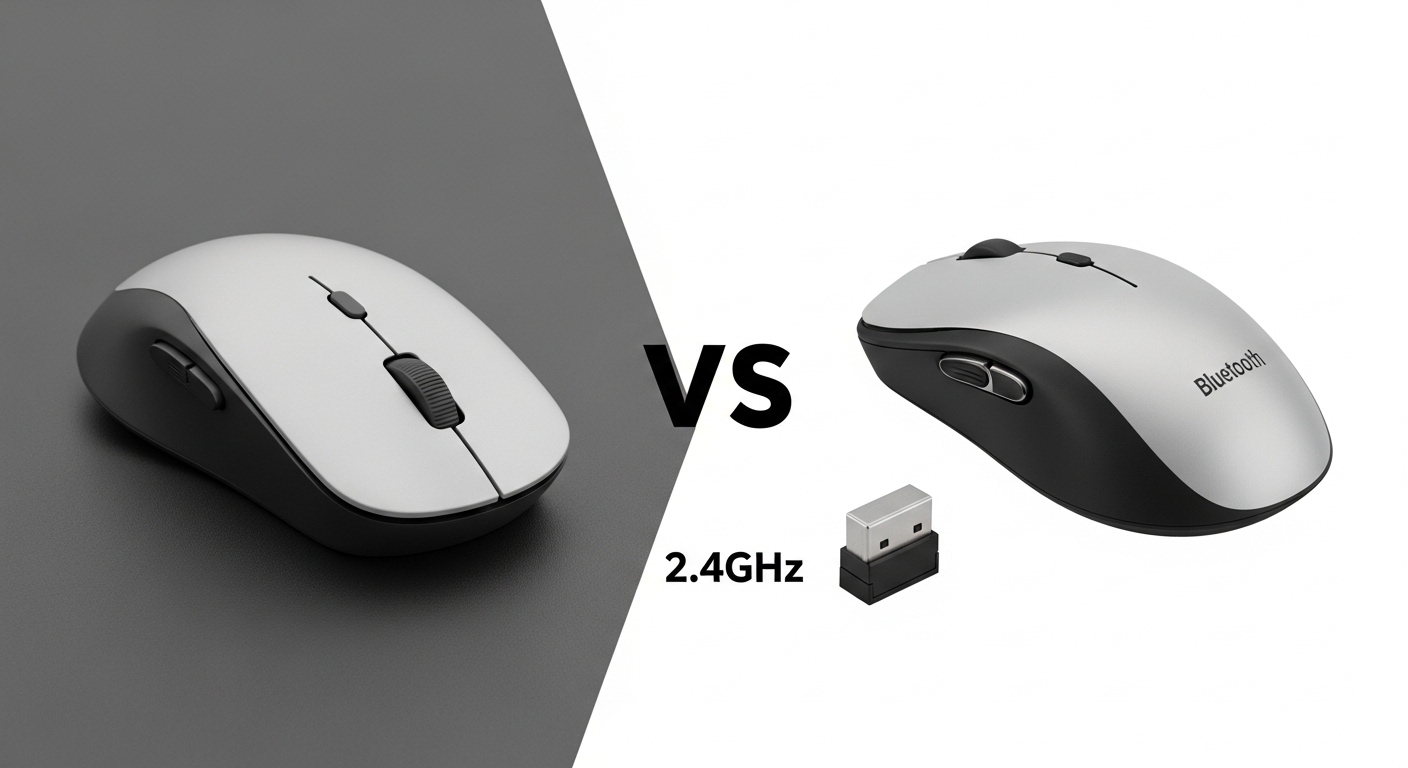
I’ve used both Bluetooth and 2.4GHz dongle mice for years across laptops, desktops, crowded Wi-Fi offices, and travel setups. Here’s the honest, real-world difference — and which one I’d choose for the best mix of speed + stability.
Quick answer (based on real use)
- Feels faster & more stable most of the time: 2.4GHz dongle
- Cleaner and more convenient for travel: Bluetooth
- Best “optimal” setup: a mouse that offers both, so you can switch depending on the situation (desk vs travel)
How the two connections actually work (in plain English)
Bluetooth mouse
- Connects through your computer’s built-in Bluetooth (no receiver needed)
- Shares the Bluetooth radio with other devices (headphones, keyboards, etc.)
- Depends heavily on your laptop’s Bluetooth quality and drivers
2.4GHz dongle mouse
- Comes with a USB receiver (dongle) that talks directly to the mouse
- Usually forms a more “dedicated” connection
- Less dependent on your PC’s Bluetooth stack
What “feels faster” in real life?
A mouse can technically be fast, but “fast” to you means:
- cursor responds instantly
- clicks register consistently
- movement doesn’t micro-stutter
2.4GHz usually feels snappier because:
- It’s often tuned for low-latency input
- It avoids Bluetooth’s extra layers (pairing stack, power-saving behaviors)
- It’s less likely to get “busy” when your laptop is also handling multiple Bluetooth devices
Bluetooth can feel perfectly fine… until:
- your laptop goes into power-saving mode
- Bluetooth is sharing bandwidth with earbuds/controllers
- drivers get weird after updates
- you’re in a crowded signal environment
My real-world take: If you’re sensitive to input delay (gaming, design work, fast office workflows), 2.4GHz is the safer bet.
Stability: which one drops less?
2.4GHz dongle tends to be more stable on a desk setup
- especially on desktops or PCs with mediocre Bluetooth chips
- especially when you’re using Bluetooth headphones at the same time
But there’s a catch: USB port placement matters. If your dongle is plugged into the back of a metal PC case under your desk, you might see:
- dropouts
- jitter
- reduced range
Fix: use a front USB port or a short USB extension to bring the dongle closer.
Bluetooth stability depends on your device quality
On a good laptop, Bluetooth can be solid for months.
On a cheaper laptop or older PC, Bluetooth can be:
- random disconnects
- wake/sleep issues
- occasional lag spikes
My real-world take: In mixed environments (old PCs + modern laptops), 2.4GHz is more consistently stable.
Pros & cons (honest, experience-based)
Bluetooth mouse — Pros
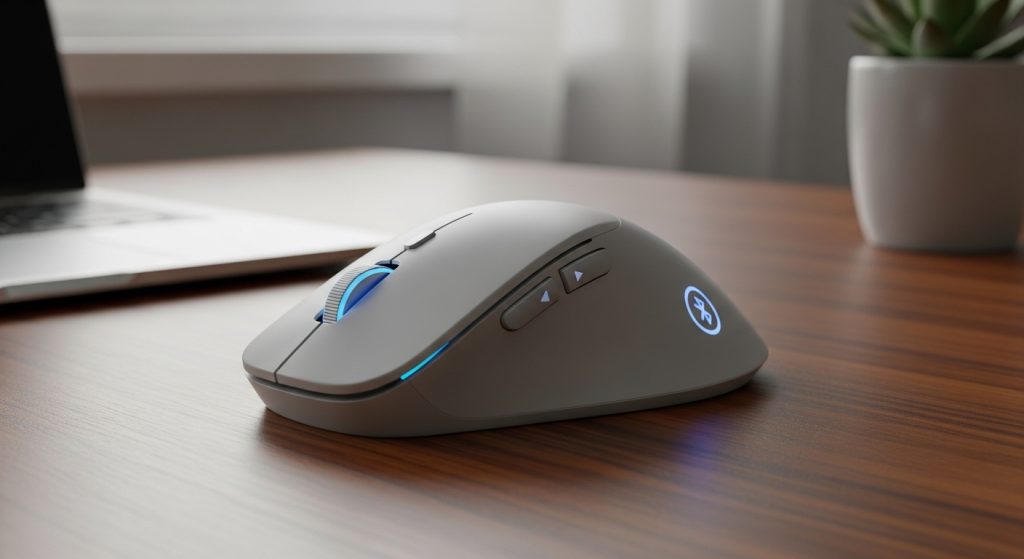
- No dongle needed (huge for travel)
- Great for tablets + ultrabooks
- Leaves USB ports free (important on MacBooks and thin laptops)
- Easy to switch devices (on many multi-device mice)
Bluetooth mouse — Cons
- Can feel slightly less responsive (depends on system)
- More sensitive to driver/power management quirks
- Can get messy if you use many Bluetooth devices at once
- Sometimes reconnects slowly after sleep
2.4GHz dongle mouse — Pros
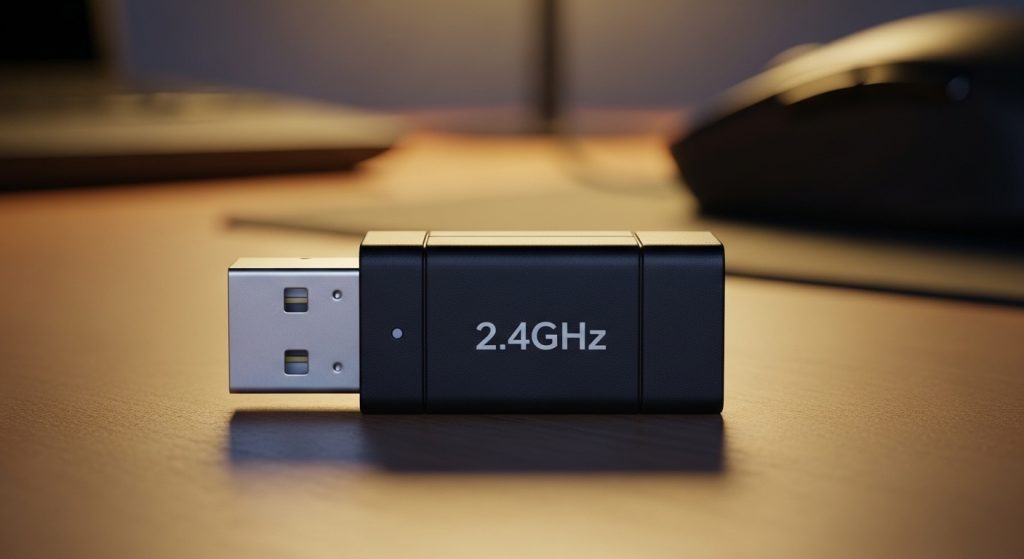
- Often lower-latency and “snappier”
- Usually more stable on desktops
- Doesn’t rely on your PC’s Bluetooth quality
- Quick wake/reconnect in many cases
2.4GHz dongle mouse — Cons
- You can lose the dongle (and then you’re stuck)
- Uses a USB port (annoying on USB-C-only laptops)
- Can have interference if the dongle is placed poorly
- Adds one more thing to manage when traveling
Real-life scenarios: which should you choose?
Choose 2.4GHz dongle if you…
- work at a desktop PC or older laptop
- care about responsiveness (fast work, creative tools, light gaming)
- want fewer random stutters
- use Bluetooth headphones while working (common cause of Bluetooth mouse “weirdness”)
Choose Bluetooth if you…
- travel often and hate dongles/adapters
- use a MacBook/ultrabook with limited ports
- switch between laptop + tablet frequently
- mostly do light productivity (docs, browsing, email)
The “best overall” choice (optimal for most people)
If I’m picking one setup to recommend broadly, it’s this:
✅ Optimal: a mouse with both Bluetooth + 2.4GHz
Because you get:
- 2.4GHz for the most stable, snappy feel at your main desk
- Bluetooth for travel, coffee shops, and USB-port-limited devices
That combo solves nearly all real-world issues without locking you into one connection type.
Troubleshooting tips that fix 80% of “wireless mouse lag”
Even a good mouse can feel bad if the setup is wrong:
If you’re using a 2.4GHz dongle:
- Plug into a front USB port or use a short extension
- Avoid USB 3.0 ports right next to the dongle if you suspect interference
- Keep the receiver away from Wi-Fi routers and metal surfaces
If you’re using Bluetooth:
- Update Bluetooth drivers / OS
- Turn off aggressive power saving for Bluetooth (if your OS allows it)
- Avoid pairing too many Bluetooth devices at once
- Re-pair the mouse if it starts acting inconsistent after updates
Final verdict
- Fastest & most stable feel: 2.4GHz dongle
- Most convenient & travel-friendly: Bluetooth
- Best overall (for most people): a mouse that supports both, so you can use the right mode for the situation