A wireless mouse should feel “invisible” — smooth cursor, no random lag, no battery anxiety.
If yours feels jumpy or slow, it’s usually not the mouse. It’s the setup.
This guide walks you through a clean, real-world setup: DPI, pointer speed, battery habits, and the most common lag fixes (Windows + macOS).
1) Start with the right connection (Bluetooth vs 2.4GHz)
Before tweaking settings, make sure you’re using the best mode for your situation:
- 2.4GHz USB dongle: usually the most stable + snappy for desk use
- Bluetooth: great for travel and fewer dongles, but can be more sensitive to power saving and interference
Tip: If your mouse supports both, use 2.4GHz at your main desk and Bluetooth when you’re mobile.
2) Set DPI the right way (so it feels fast AND precise)
What DPI actually changes
DPI = how far the cursor moves when you move the mouse.
Higher DPI = faster cursor movement with less hand motion.
A simple DPI starting point (works for most people)
Use this as your baseline:
- 1080p monitor: 800–1200 DPI
- 1440p monitor: 1200–1600 DPI
- 4K monitor: 1600–2400 DPI
If you use multiple monitors, go one step higher than your main monitor’s suggestion.
The “two-step” method that avoids overshooting
- Set DPI to a reasonable range (example: 1200 or 1600)
- Fine-tune with system pointer speed (next section)
Why this works: DPI gives you the “gear,” pointer speed gives you the “micro-adjust.”
3) Dial in pointer speed (Windows + macOS)
Windows (best-feel settings)
- Settings → Bluetooth & devices → Mouse → Additional mouse settings
- Go to Pointer Options
- Set Select a pointer speed around the middle (start at 6/11)
- Turn Enhance pointer precision:
- OFF if you want consistent movement (better for precision + gaming)
- ON if you prefer acceleration (some people like it for office work)
My usual recommendation: Start with OFF. If it feels too slow when you move quickly, try turning it ON and test again.
macOS
- System Settings → Mouse
- Adjust Tracking speed
- If you use a high DPI mouse, keep macOS tracking speed closer to the middle and let DPI do the heavy lifting.
Optional: Turn off “natural” scroll only if it annoys you—doesn’t affect tracking, just scrolling direction.
4) Fix scrolling and click feel (small changes, big comfort)
- If scrolling feels too fast/slow: check your mouse software (if any) for scroll speed
- If you do spreadsheet work: enable horizontal/side scroll if your mouse supports it
- If your clicks feel tiring: reduce grip pressure and adjust your hand position (wireless mice often make people “hover” and tense up)
5) Battery tips that actually extend lifespan (and reduce lag)
For AA/AAA battery mice
- Use quality alkaline or rechargeable NiMH (like Eneloop-style batteries)
- Replace batteries early if you notice:
- stutter
- slow wake
- random disconnects
Real-world note: Many “lag issues” are just a weak battery.
For rechargeable mice
- Avoid draining to 0% constantly
- Best habit: charge when it hits 20–30%
- Don’t leave it plugged in 24/7 if it gets warm (heat is the enemy of batteries)
Universal battery rule
Turn the mouse off when traveling or tossing it in a bag.
A mouse waking up and clicking in transit can drain battery faster than you’d expect.
6) Fix wireless lag (the checklist that solves most problems)
A) If you’re using a 2.4GHz USB dongle
Most common cause: bad receiver placement.
Do this:
- Plug the dongle into a front USB port (desktop)
- Use a short USB extension to bring the receiver closer to the mouse
- Keep it away from:
- Wi-Fi routers
- metal surfaces
- USB 3.0 hubs right next to it (can cause interference on some setups)
Quick test: If moving the dongle closer fixes it, it wasn’t the mouse.
B) If you’re using Bluetooth
Common causes: power saving + crowded Bluetooth devices.
Try this:
- Turn Bluetooth off/on
- Remove the mouse and re-pair
- Disconnect unused Bluetooth devices (especially audio) and test
- Update OS + Bluetooth drivers (Windows)
C) Surface issues (this is underrated)
Some mousepads and glossy desks cause tracking jitter.
Fix:
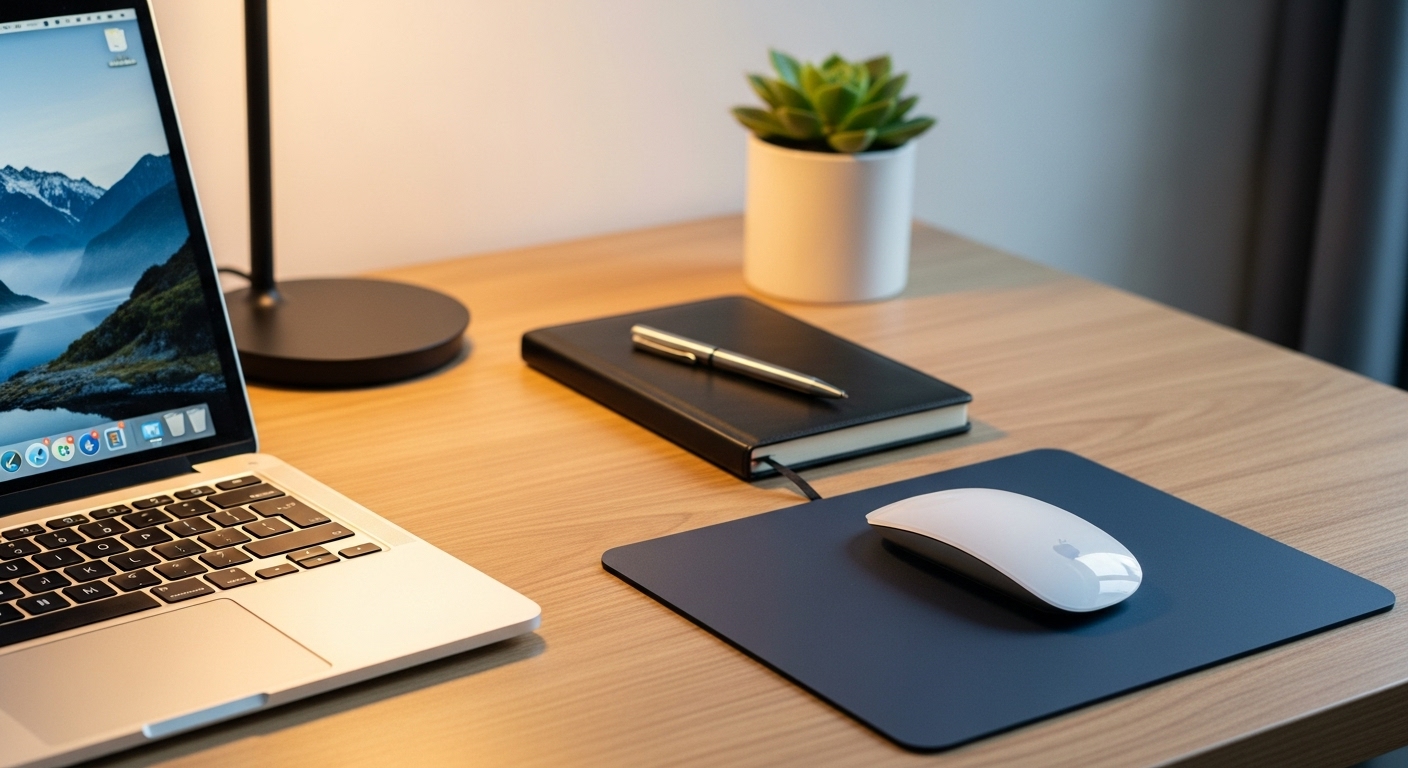
- Try a different surface (matte mousepad is best)
- Clean the sensor window (dust/hair can cause “random lag”)
D) USB power + hubs
If you use a cheap USB hub, your receiver may get unstable.
Fix:
- Plug receiver directly into the laptop/PC
- Try a different port (yes, it matters)
7) Make it comfortable for all-day use (wrist-saving setup)
A mouse can be “working” but still cause fatigue.
Quick comfort improvements:
- Keep your wrist neutral (not bent up)
- Lower your shoulder; don’t reach forward—pull the mouse closer
- Use your forearm to move more, not just your wrist
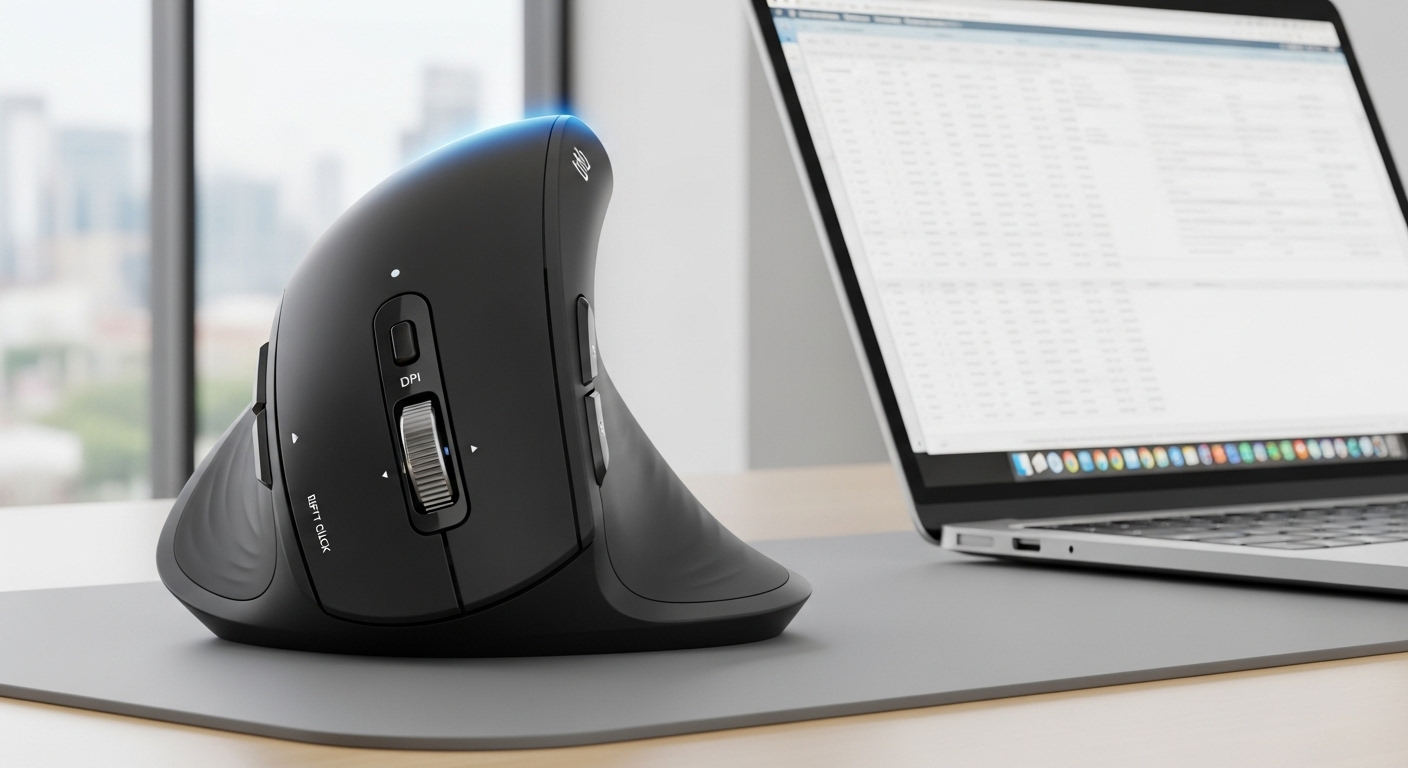
- If you get wrist pain: consider a more ergonomic shape and take micro-breaks (30–60 seconds every hour helps)
8) My “best setup” recipe (fast, stable, and feels natural)
If you want a simple default that works for most people:
- Use 2.4GHz dongle at your main desk (Bluetooth only when needed)
- Set DPI:
- 1080p: 1000–1200
- 1440p: 1400–1600
- 4K: 1800–2400
- Set pointer speed:
- Windows: 6/11 (start) + Enhance precision OFF
- macOS: tracking speed middle
- Place dongle near the mouse (front port or short extension)
- Replace/charge battery before it gets critically low
Quick FAQ (SEO-friendly)
Why does my wireless mouse lag only sometimes?
Usually interference, weak battery, or receiver placement. Start with moving the dongle closer (2.4GHz) or re-pairing (Bluetooth).
Is higher DPI always better?
No. Too high can feel twitchy and tiring. Aim for “fast enough without overshoot.”
Should I turn on mouse acceleration?
If you want consistent precision, keep it off. If you like faster movement with quick flicks, try it on.